> ## Documentation Index
> Fetch the complete documentation index at: https://docs.postiz.com/llms.txt
> Use this file to discover all available pages before exploring further.
# Instagram
> How to add Instagram to your system
**NOTE:** Please be advised that Instagram and Facebook can use the same app (no need to create two separate apps)
## Connection Options
There are two ways to connect to an Instagram account: by using a Facebook Business or through a standalone flow that connects directly to an Instagram account. Both methods will require a [Meta for Developers account](https://developers.facebook.com/apps/).
**What Postiz supports on Instagram:**
* Feed posts (single image, carousel, video / Reels).
* Stories (image and video).
* Attaching audio (music or original sounds) to Reels — Facebook Business connection only, the [Instagram Audio API](https://developers.facebook.com/docs/instagram-platform/content-publishing/audio-api/) is not available for standalone connections.
* Replying to comments via an explicit user action.
**What Postiz does not support:**
* Story link stickers / swipe-up links — the Instagram Graph API doesn't expose interactive sticker payloads, so Postiz can only upload the story media.
* Automatic comment auto-reply — there is no agent that watches for incoming comments and replies on your behalf. You can post a reply through the API, but each reply is an explicit action.
## Setting up Meta Application
The following steps will guide you through the setup of a Meta application that can be used for connecting Instagram to Postiz.
Select a business portfolio, then create a [new app in Meta for developers](https://developers.facebook.com/apps/creation/).
Please be advised that for public applications, you will need to verify your business.
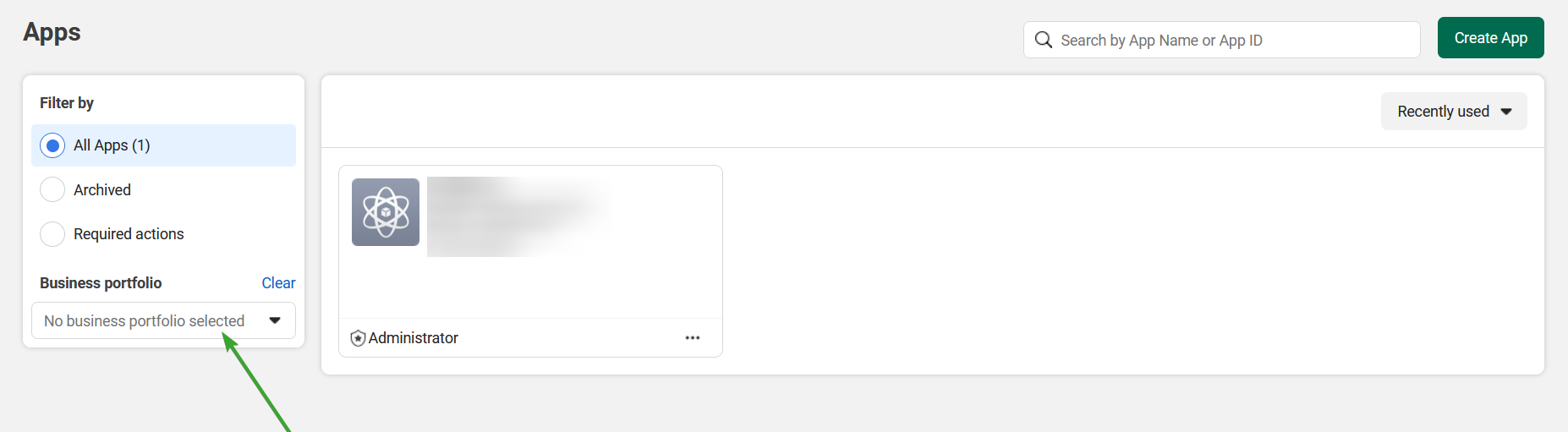
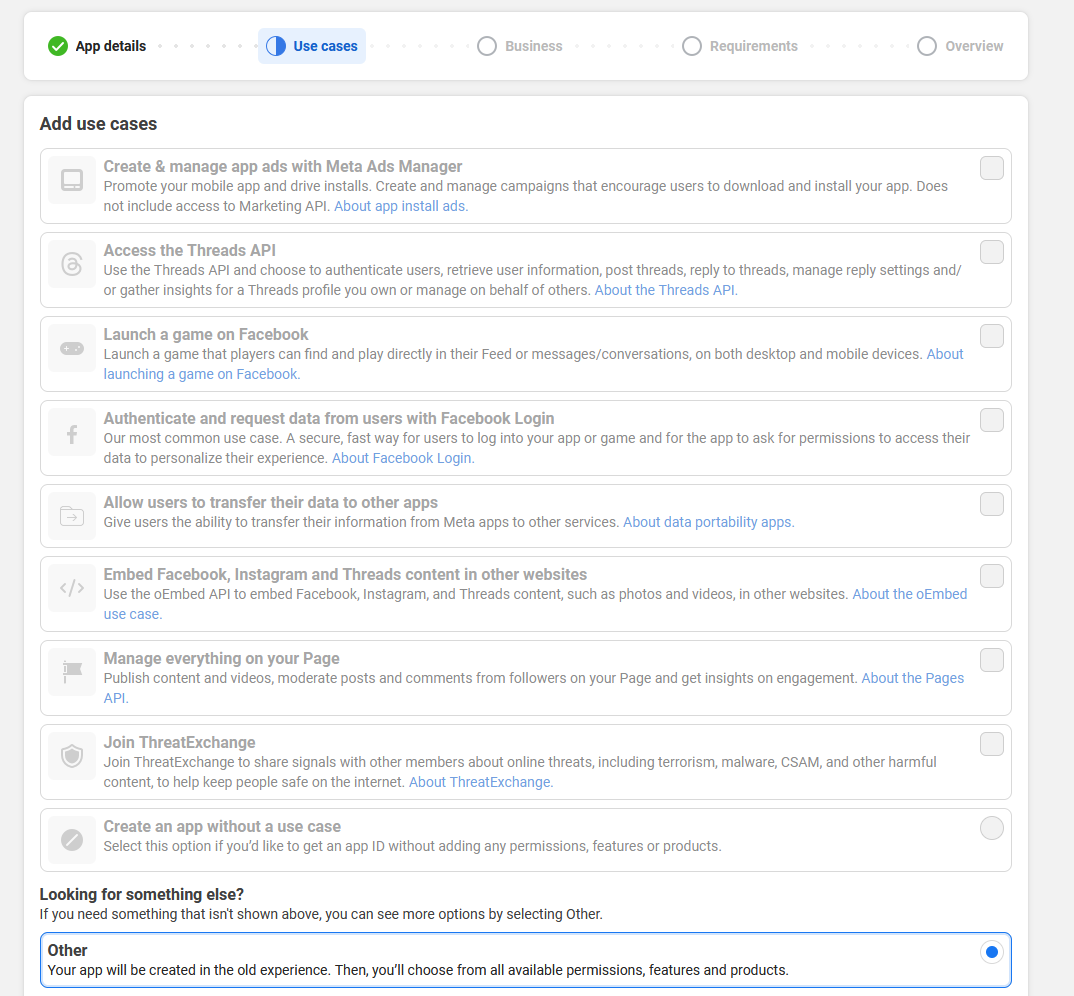
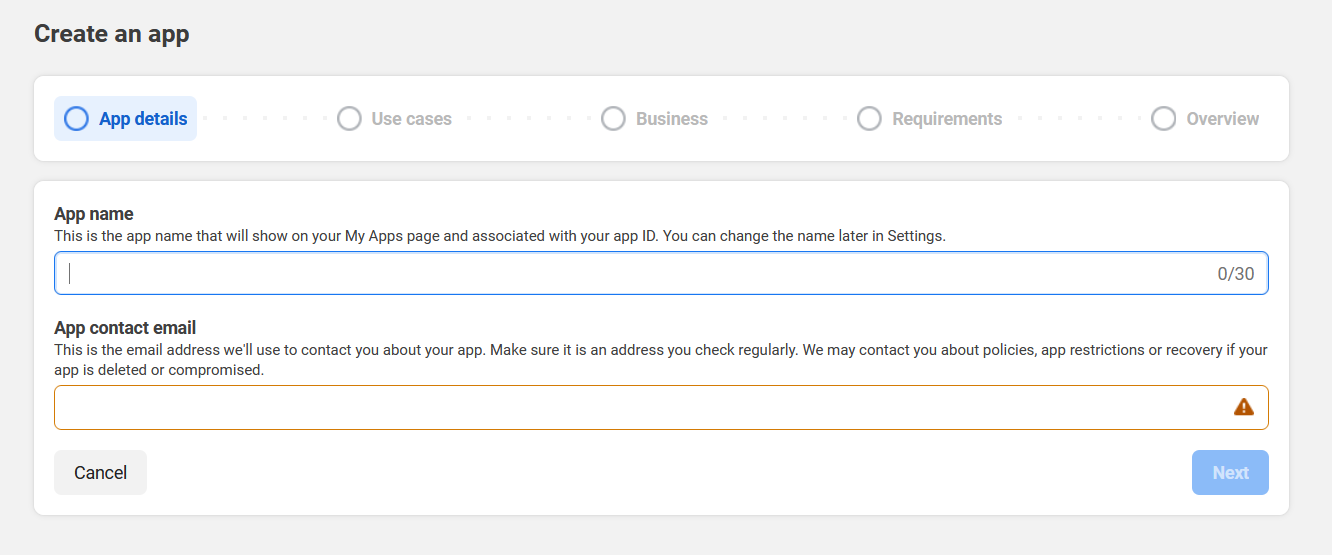 Select "Other" and click next
 Then select business

Add all your details and click Create App

## Facebook Business Option
If you have a Facebook Business page that is linked to your Instagram account, you can connect to it by setting up the Login for Business flow.

Set up login for business
Set up a redirect URI back to the application

**Your Instagram OAuth2 Redirect URI:**
* Production: `https://your-postiz-domain.com/integrations/social/instagram`
* Local development: `http://localhost:4200/integrations/social/instagram`
* Docker: `http://localhost:5000/integrations/social/instagram`

Go to advanced permission and request access for the following scopes:
* `instagram_basic`
* `pages_show_list`
* `pages_read_engagement`
* `business_management`
* `instagram_content_publish`
* `instagram_manage_comments`
* `instagram_manage_insights`

Go to basic permissions copy your App ID and App Secret and paste them in your `.env` file
```env theme={null}
FACEBOOK_APP_ID="app id"
FACEBOOK_APP_SECRET="app secret"
```
Instagram should now be working!
## Instagram Standalone Option
If you want to connect directly to your Instagram account without having to use a Facebook Business, use the standalone option.
Please note that standalone option requires a professional Instagram account.
Then select business

Add all your details and click Create App

## Facebook Business Option
If you have a Facebook Business page that is linked to your Instagram account, you can connect to it by setting up the Login for Business flow.

Set up login for business
Set up a redirect URI back to the application

**Your Instagram OAuth2 Redirect URI:**
* Production: `https://your-postiz-domain.com/integrations/social/instagram`
* Local development: `http://localhost:4200/integrations/social/instagram`
* Docker: `http://localhost:5000/integrations/social/instagram`

Go to advanced permission and request access for the following scopes:
* `instagram_basic`
* `pages_show_list`
* `pages_read_engagement`
* `business_management`
* `instagram_content_publish`
* `instagram_manage_comments`
* `instagram_manage_insights`

Go to basic permissions copy your App ID and App Secret and paste them in your `.env` file
```env theme={null}
FACEBOOK_APP_ID="app id"
FACEBOOK_APP_SECRET="app secret"
```
Instagram should now be working!
## Instagram Standalone Option
If you want to connect directly to your Instagram account without having to use a Facebook Business, use the standalone option.
Please note that standalone option requires a professional Instagram account.
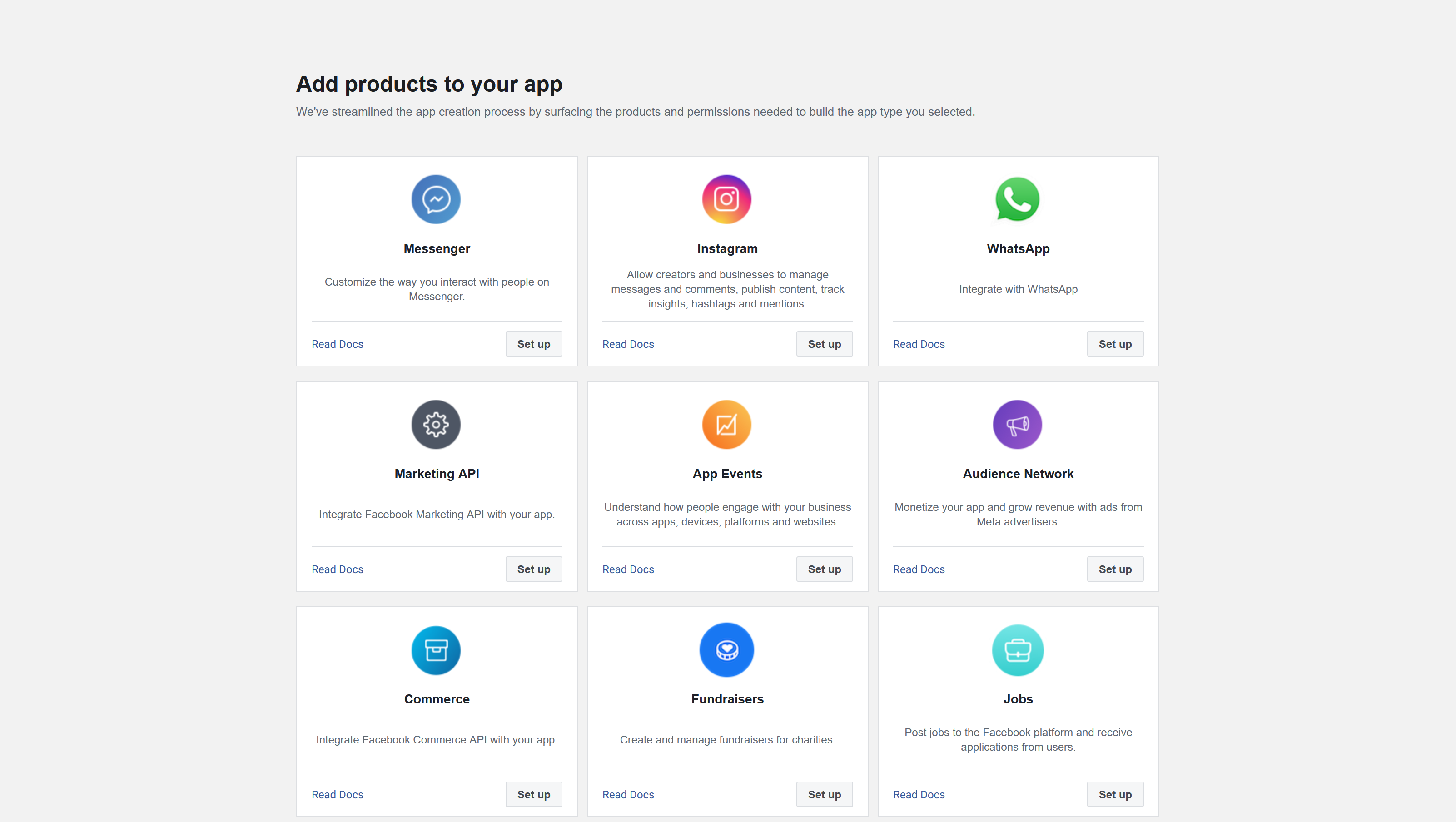 Set up Instagram.
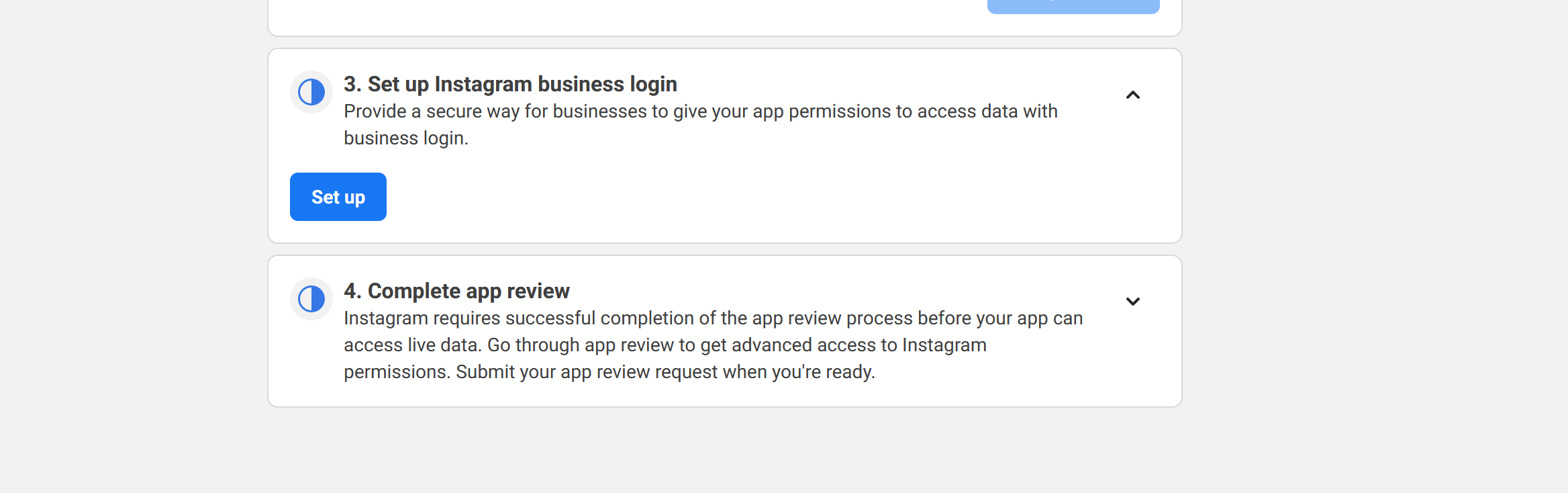 Click on the button to set up Instagram Business Login
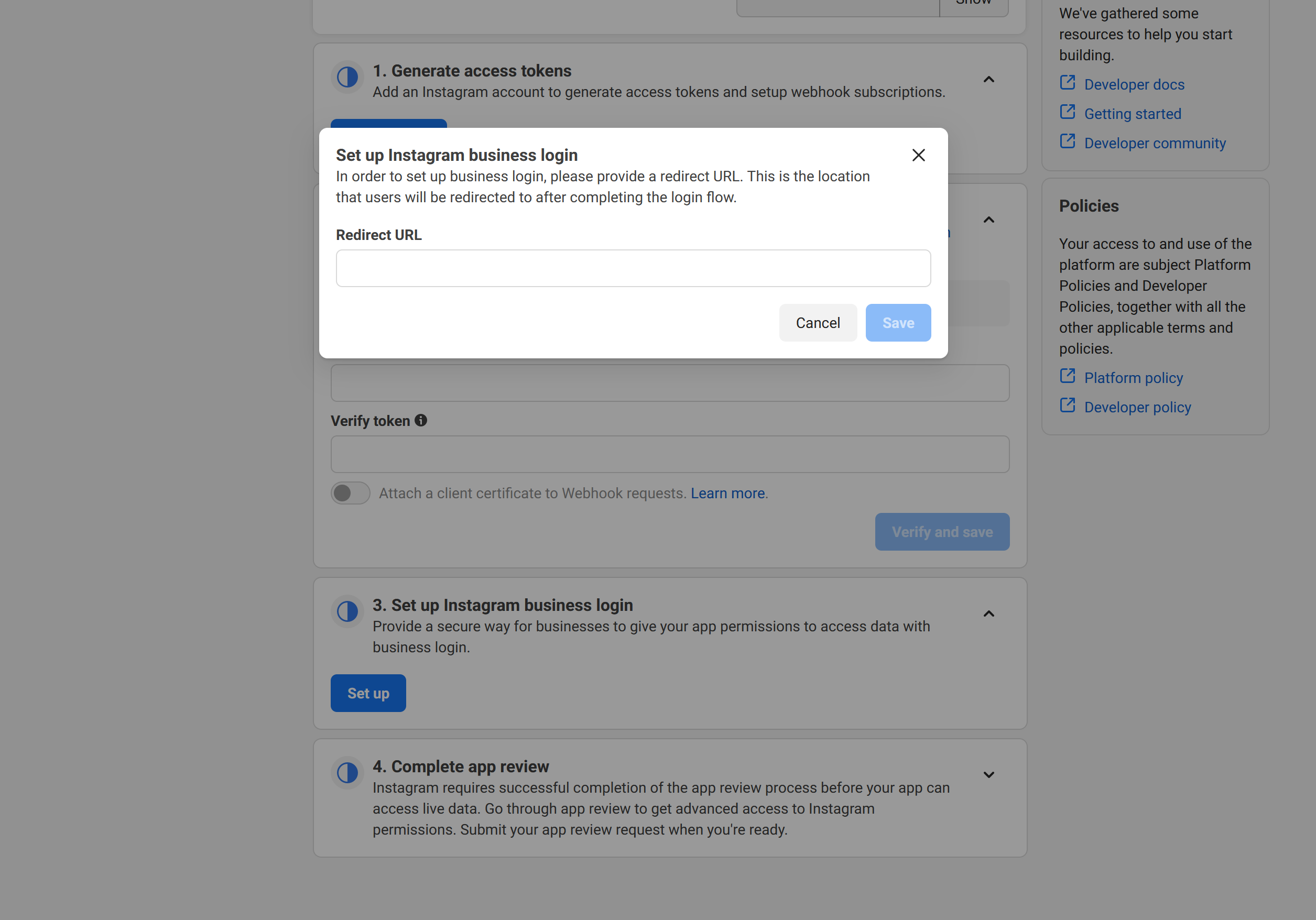 **Your Instagram Standalone OAuth2 Redirect URI:**
* Production: `https://your-postiz-domain.com/integrations/social/instagram-standalone`
* Local development: `http://localhost:4200/integrations/social/instagram-standalone`
* Docker: `http://localhost:5000/integrations/social/instagram-standalone`
**Your Instagram Standalone OAuth2 Redirect URI:**
* Production: `https://your-postiz-domain.com/integrations/social/instagram-standalone`
* Local development: `http://localhost:4200/integrations/social/instagram-standalone`
* Docker: `http://localhost:5000/integrations/social/instagram-standalone`
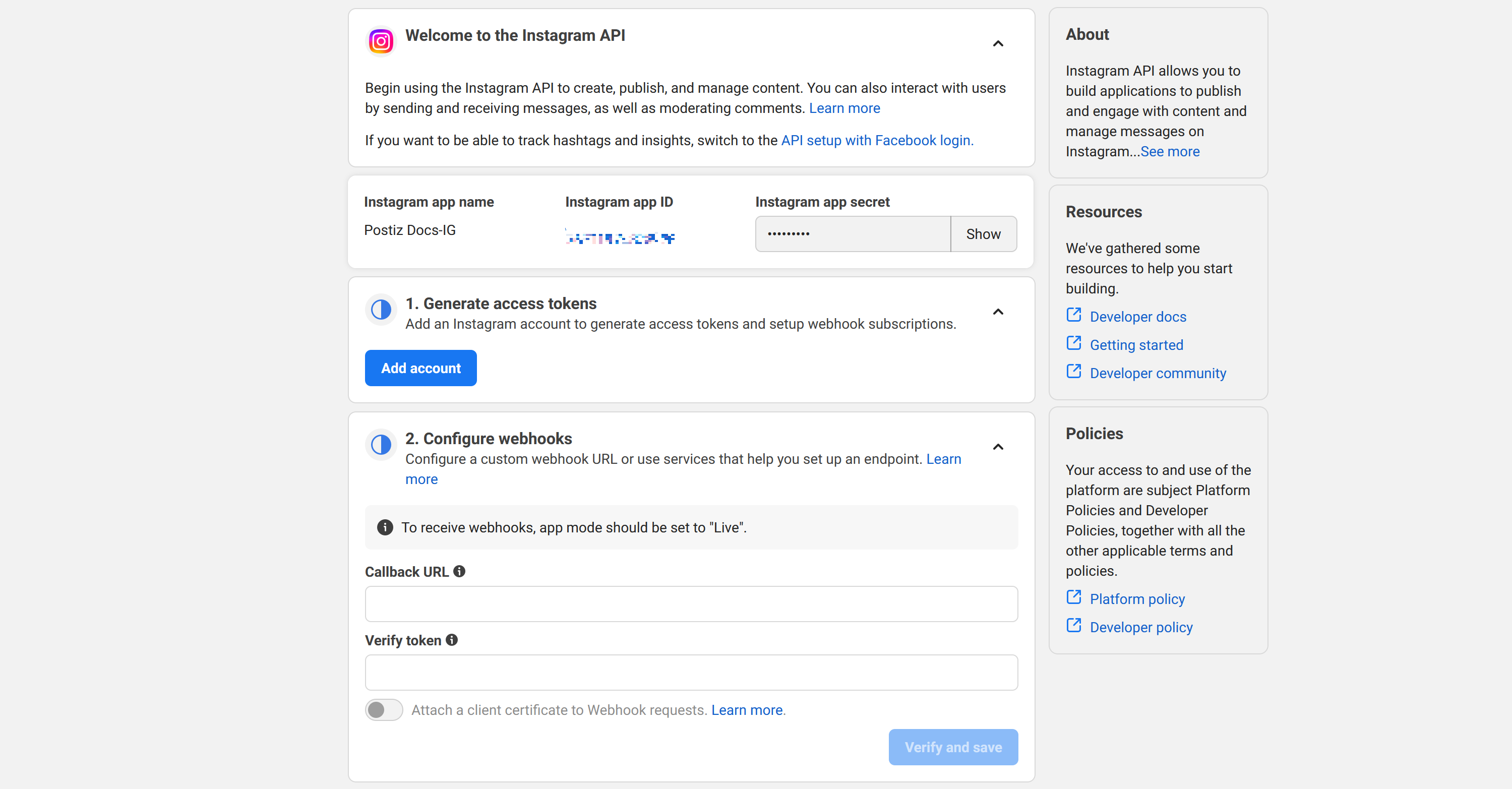 From your Instagram API setup screen copy the Instagram App ID and Instagram App Secret and paste them in your `.env` file
```env theme={null}
INSTAGRAM_APP_ID="app id"
INSTAGRAM_APP_SECRET="app secret"
```
Go to the Postiz web interface, and click on the "Add Channel" button. Select "Instagram (Standalone)" from the list of available channels. You should be redirected to the Instagram login screen to authorize the application.
## Adding App Roles
If you're having trouble connecting to your Instagram accounts, adding them as App Roles may help.
From your Instagram API setup screen copy the Instagram App ID and Instagram App Secret and paste them in your `.env` file
```env theme={null}
INSTAGRAM_APP_ID="app id"
INSTAGRAM_APP_SECRET="app secret"
```
Go to the Postiz web interface, and click on the "Add Channel" button. Select "Instagram (Standalone)" from the list of available channels. You should be redirected to the Instagram login screen to authorize the application.
## Adding App Roles
If you're having trouble connecting to your Instagram accounts, adding them as App Roles may help.
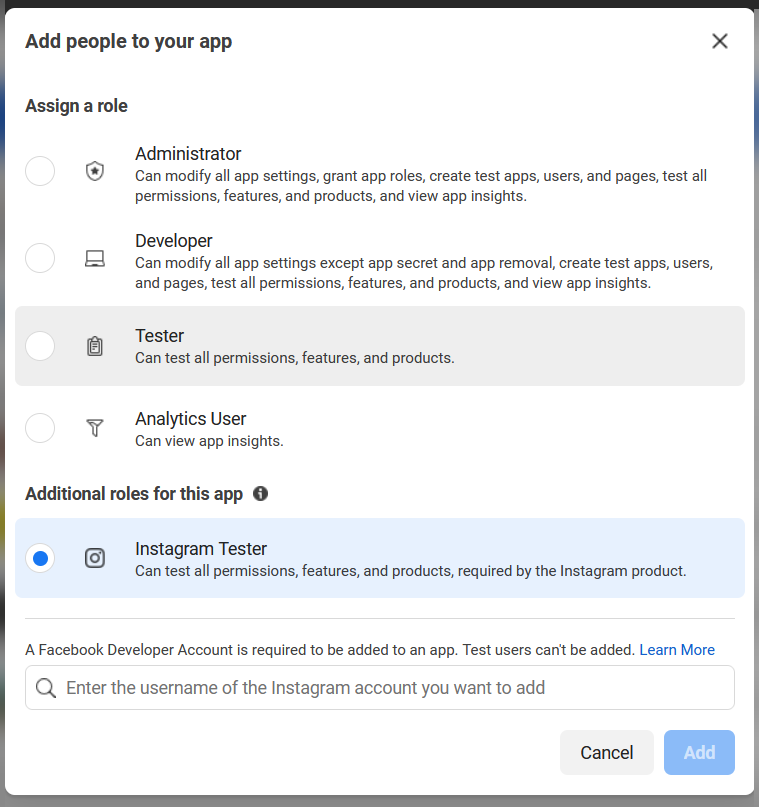
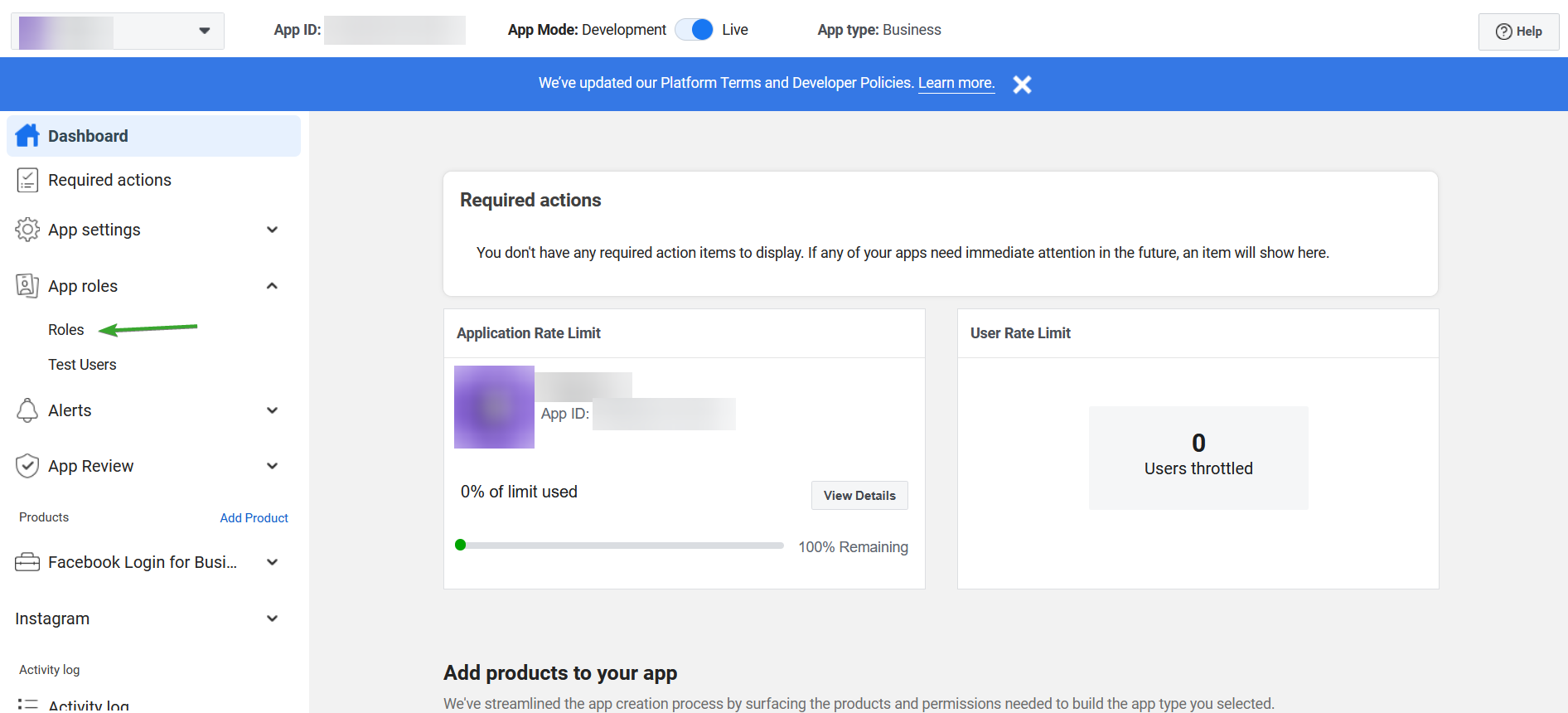 Click on "Add People"
 Select the "Instagram Tester" option, and type in the handles of all the Instagram accounts you'd like to connect to. Then, click "Add".
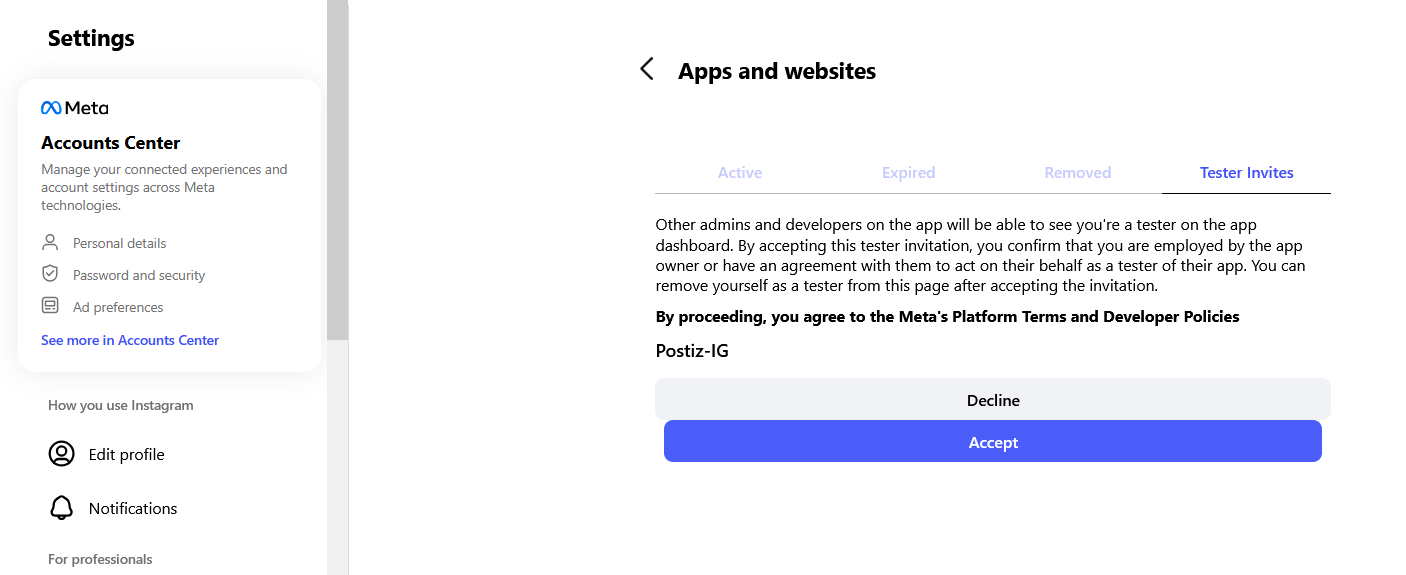
 Go to your Instagram account, and accept the tester invitation in the [Apps and Websites section of the profile settings](https://www.instagram.com/accounts/manage_access/).
 ## Troubleshooting
### "Insufficient developer role" error
This means the Instagram account you're trying to connect hasn't been added as a tester on the Meta app. Walk through the [Adding App Roles](#adding-app-roles) section above for that exact account: add it as an Instagram Tester, then accept the invitation from within the Instagram app's settings.
### Channel connects, but posts fail with permission errors
The advanced permissions on the Meta app must be approved (or your account must be a developer/tester on the app). Submit the app for review with the required scopes — until then, only roles you've added can publish.
## Troubleshooting
### "Insufficient developer role" error
This means the Instagram account you're trying to connect hasn't been added as a tester on the Meta app. Walk through the [Adding App Roles](#adding-app-roles) section above for that exact account: add it as an Instagram Tester, then accept the invitation from within the Instagram app's settings.
### Channel connects, but posts fail with permission errors
The advanced permissions on the Meta app must be approved (or your account must be a developer/tester on the app). Submit the app for review with the required scopes — until then, only roles you've added can publish.