> ## Documentation Index
> Fetch the complete documentation index at: https://docs.postiz.com/llms.txt
> Use this file to discover all available pages before exploring further.
# TikTok
> How to add TikTok to your system
This integration requires that you have a TikTok developer account. It also requires that you have a public website, with https, and can upload files to that site to verify ownership.
TikTok will also not allow http\:// for your app redirect URI, so you will need to be accessing Postiz from HTTPS.
**NOTE:** TikTok fetches media via pull\_from\_url. Your media files must be publicly reachable over HTTPS; localhost or private routes (e.g., /uploads) will fail.
Expose your uploads via a reverse proxy (e.g., [Caddy](/reverse-proxies/caddy)) or use object storage/CDN such as [Cloudflare R2](/configuration/r2) with public access.
Ensure the media domain is listed under your TikTok developer account's verified sites.
TikTok approval is not the final step for Direct Post access. TikTok allows unaudited API clients to use the Direct Post API, but posts are restricted to private visibility until the API client completes TikTok's audit process for Terms of Service compliance.
If your API client has not passed this audit, TikTok also limits Direct Post usage to up to 5 users posting in a 24-hour window, and those user accounts must be private at the time of posting. See TikTok's [Direct Post API developer guidelines](https://developers.tiktok.com/doc/content-sharing-guidelines#direct_post_api_-_developer_guidelines) for the current requirements.
In practice this means: before your TikTok developer app passes audit, the `privacy_level` setting for posts is forced to **SELF\_ONLY** (private) regardless of what you choose in Postiz. Once your app is audited, all privacy levels become available.
**Known issue:** the `/integrations/social/tiktok` connect page can crash for some accounts. If you see a blank page or "cannot read properties of undefined" error, retry from a fresh incognito window. See [Known Issues](/troubleshooting/known-issues).
Go here: [https://developers.tiktok.com/apps](https://developers.tiktok.com/apps)
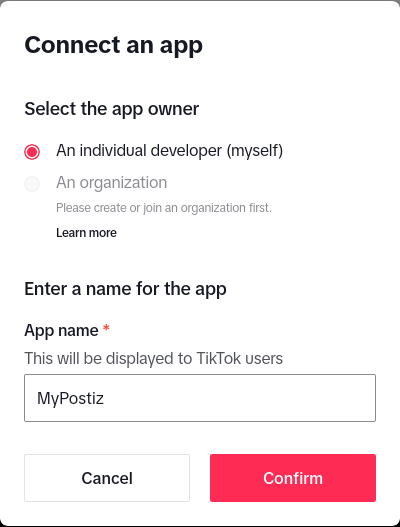 * **App Name:** `MyPostiz`
* **Redirect URI:** (see below)
**Your TikTok OAuth2 Redirect URI:**
* Production: `https://your-postiz-domain.com/integrations/social/tiktok`
* Local development (HTTPS required): `https://localhost:4200/integrations/social/tiktok`
* Docker (HTTPS required): `https://localhost:5000/integrations/social/tiktok`
This needs to be on a public domain that you have access to, that is hosted on HTTPS.
Tick "Web" for your platforms.
Add the "Login Kit" and "Content Posting API" to your app.
For "Login Kit", set the redirect URI to [http://localhost:4200/integrations/social/tiktok](http://localhost:4200/integrations/social/tiktok)
For Content posting API, enable "Direct Post".
Add the following scopes:
* user.info.basic
* video.create
* video.publish
* video.upload
* user.info.profile
These can be found immediately after registering your application. The client ID is 16 characters long and the secret is 32 characters long.
```env theme={null}
TIKTOK_CLIENT_ID=1234567890123456
TIKTOK_CLIENT_SECRET=12345678901234567890123456789012
```
Restart Postiz with the updated environment variables
Go to the Postiz web interface, and click on the "Add Channel" button. Select "TikTok" from the list of available channels. You should be redirected to TikTok to authorize the application.
* **App Name:** `MyPostiz`
* **Redirect URI:** (see below)
**Your TikTok OAuth2 Redirect URI:**
* Production: `https://your-postiz-domain.com/integrations/social/tiktok`
* Local development (HTTPS required): `https://localhost:4200/integrations/social/tiktok`
* Docker (HTTPS required): `https://localhost:5000/integrations/social/tiktok`
This needs to be on a public domain that you have access to, that is hosted on HTTPS.
Tick "Web" for your platforms.
Add the "Login Kit" and "Content Posting API" to your app.
For "Login Kit", set the redirect URI to [http://localhost:4200/integrations/social/tiktok](http://localhost:4200/integrations/social/tiktok)
For Content posting API, enable "Direct Post".
Add the following scopes:
* user.info.basic
* video.create
* video.publish
* video.upload
* user.info.profile
These can be found immediately after registering your application. The client ID is 16 characters long and the secret is 32 characters long.
```env theme={null}
TIKTOK_CLIENT_ID=1234567890123456
TIKTOK_CLIENT_SECRET=12345678901234567890123456789012
```
Restart Postiz with the updated environment variables
Go to the Postiz web interface, and click on the "Add Channel" button. Select "TikTok" from the list of available channels. You should be redirected to TikTok to authorize the application.