

1
Create a new app
Head over to LinkedIn developers and create a new app.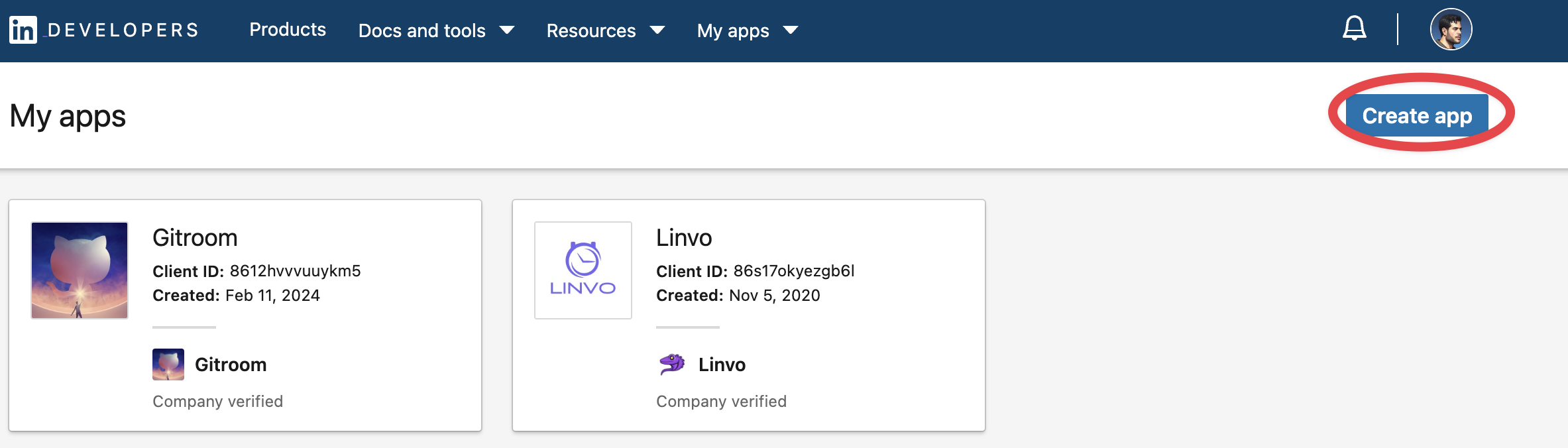
2
Verify your app
Verify your app with LinkedIn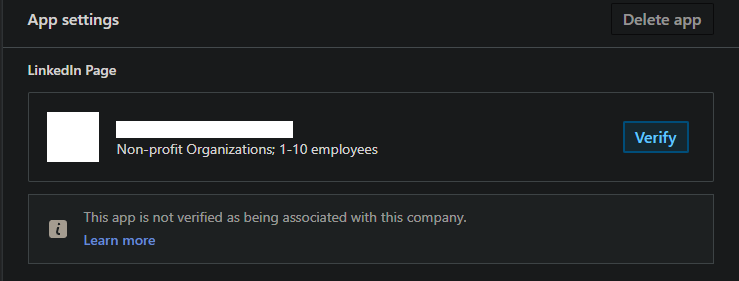
3
Add required products
Fill in all the details, once created head over to Products and make sure you add all the required products:
- Share on LinkedIn
- Advertising API
- Sign in with LinkedIn using OpenID connect
4
Check the granted scopes
Under the Auth tab of your app, the “OAuth 2.0 scopes” section must list all of the scopes Postiz requests:
openidprofilew_member_socialr_basicprofilerw_organization_adminw_organization_socialr_organization_social
w_member_social from Share on LinkedIn, and openid / profile from Sign In with LinkedIn using OpenID Connect.5
Configure OAuth2 Redirect URI
Your LinkedIn Page OAuth2 Redirect URI:
- Production:
https://your-postiz-domain.com/integrations/social/linkedin-page - Local development:
http://localhost:4200/integrations/social/linkedin-page - Docker:
http://localhost:5000/integrations/social/linkedin-page
6
Copy your credentials
Copy the created You can find those under the Auth Tab of your LinkedIn App in the developer portal.
Client ID and Client Secret and add them to your .env file.Posting PDFs / document carousels
LinkedIn is the only provider Postiz supports PDF posting on, and only through document-carousel posts. When you create a carousel of images on a LinkedIn Page, Postiz combines the images into a PDF document and uploads it as a LinkedIn document share. You don’t upload a PDF directly. Postiz produces the PDF from your images. This is not supported on other platforms; the public-API upload endpoint does not acceptapplication/pdf.