

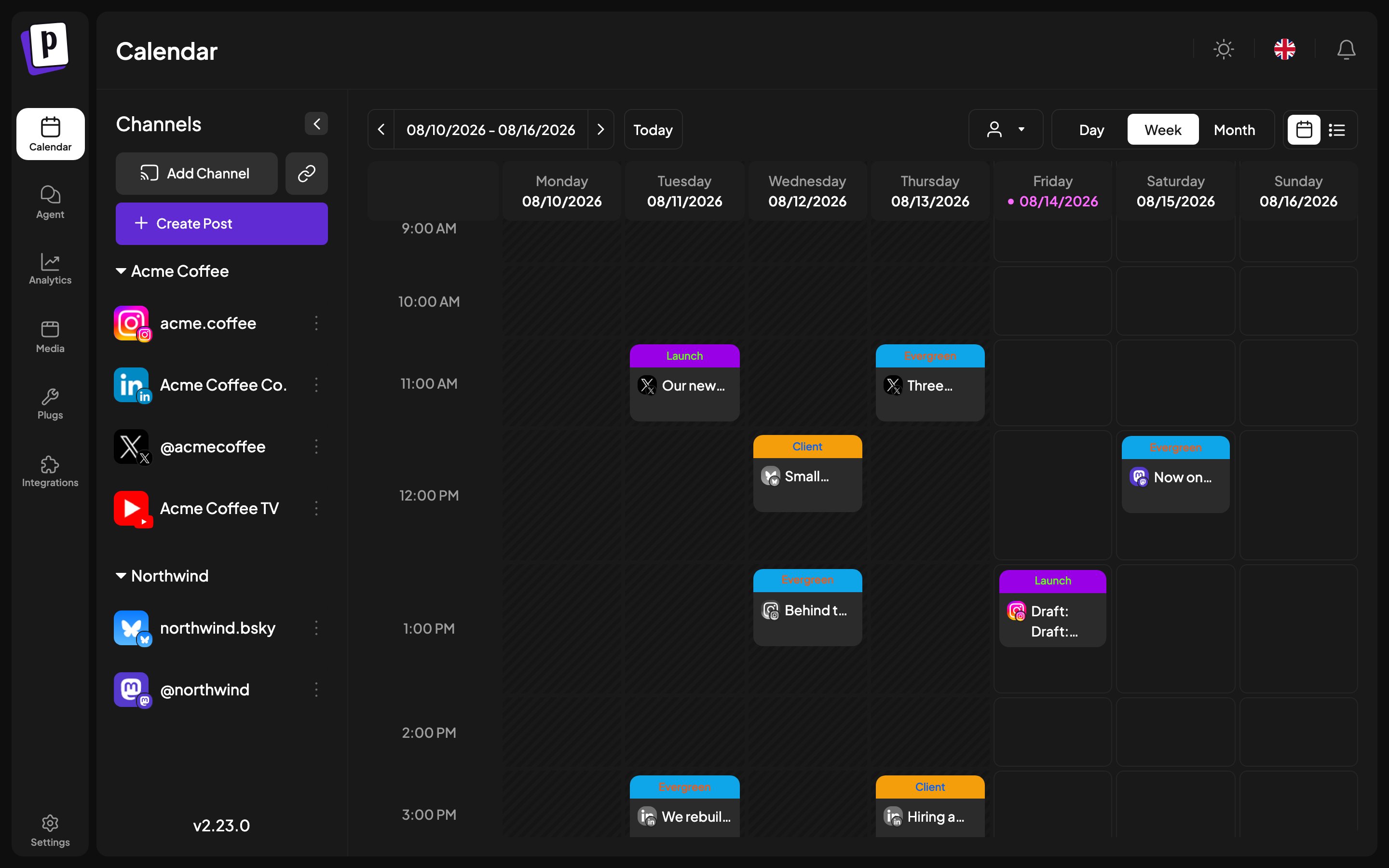
Where: the Calendar section, the app’s home screen The calendar is both the plan and the record: scheduled posts, drafts and published posts all sit on the same grid.
Postiz week view showing channels grouped by client in the sidebar and colour-tagged posts across the week

Views

Day view is the one worth understanding. Its rows are not every hour, they are your time slots, so the day reads as a plan rather than a wall of empty hours. List view swaps the view switcher for state filters: All, Scheduled, Draft, Published, 100 posts per page. It is the fastest way to answer “what is still a draft”. Your chosen view is remembered between sessions, and it is in the URL, so you can bookmark or share a specific week.

Filtering by client

When you have more than one customer, a customer selector appears in the toolbar. Picking one filters the calendar to that client’s channels only.

Reading a post card

  • Colour comes from the post’s first tag.
  • Draft: prefix means it will never publish.
  • A red ring means it failed. The error is in the tooltip.
  • Struck-through and unclickable means the slot is in the past.
  • ”+ Show more (N)” appears when a cell holds more than three posts.

Creating a post from the calendar

Click any empty slot and the composer opens with that time filled in. Past slots are not clickable. If you have sets, Postiz asks whether to start from one before opening the composer.

Post actions

Hover a post card for Duplicate, Preview, Statistics and Delete. See Post actions and statistics.

The channel sidebar

The left sidebar lists your channels, grouped by customer where you have set that up. From here you add channels, open the channel menu, create a post, and reach the AI post generator. Group headings collapse, and the whole sidebar collapses, which is worth doing once you have a lot of channels.