

... menu, Move / add to group
If you run social for more than one client, grouping channels by client is what
makes the calendar readable. Postiz calls these groups customers.
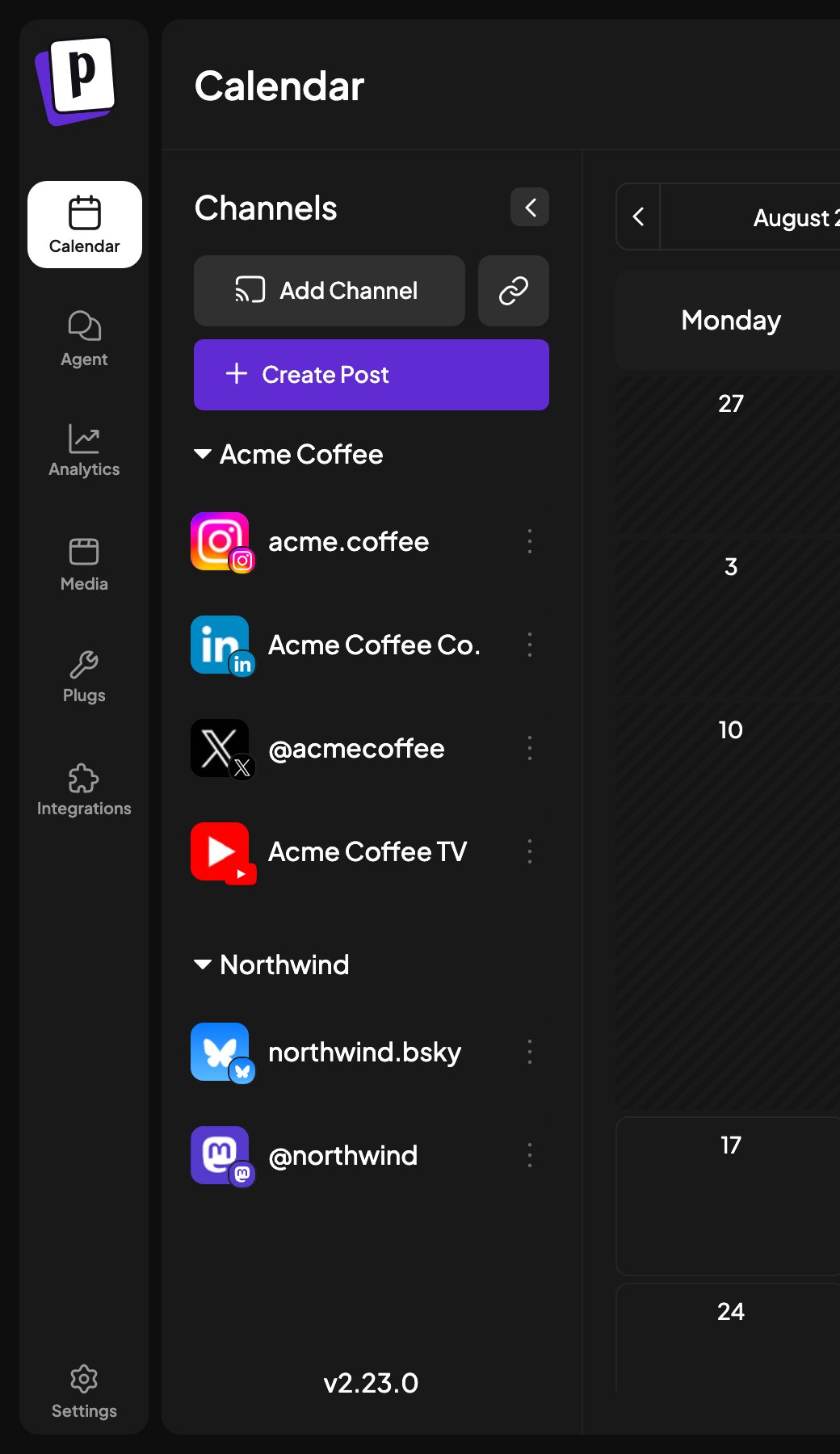
Grouping channels
Assign a channel to a customer from its menu, or drag the channel onto a group in the sidebar. A channel belongs to at most one customer, and Remove from customer puts it back in the ungrouped list. Once channels are grouped, the sidebar shows them under collapsible group headings, and a customer selector appears in the calendar toolbar. It only appears when more than one customer exists.What grouping buys you
- Filter the whole calendar to one client. Everything else disappears, so you can review one client’s week without noise.
- Select all of a client’s channels at once in the composer. Picking the customer selects their channels in one action.
- Keep clients visually separate in a sidebar that would otherwise be a long flat list of avatars.
Invite links
You do not need a client’s password to manage their accounts. Next to Add Channel there is a second button that generates an invite link.1
Generate the link
Click the invite button in the channel sidebar and choose the platform the
client should connect.
2
Send it to the client
They open the link, authorise on the platform’s own screen, and never see
your Postiz account.
3
The channel appears in your organisation
Assign it to their customer group and start scheduling.
Invite links only work for platforms that connect through a clean redirect.
Platforms needing an instance URL, credentials typed into Postiz, or the
browser extension are not offered, because those all require someone to enter
values inside your Postiz instance.